









 Limited to 100 registrants

A kitchen display system is a digital screen and software tool used in commercial kitchens to replace paper tickets and kitchen printers. It connects with a POS system to route, organise, and track food orders in real time, helping speed up service and reduce waste.
A Kitchen Display System (KDS) is a digital screen that shows live orders sent from the POS, online ordering platforms, and delivery apps so chefs see exactly what to prepare, in what order, and for which table.
A KDS works by linking the POS or online ordering platform to kitchen-mounted displays. Each new order appears instantly on the right station screen, with timers, modifiers, and completion status tracked.
For restaurants in Australia, a KDS cuts ticket errors, speeds up service during rushes, and eliminates thermal-printer rolls. As a result, teams handle dine-in, takeaway, and delivery orders from one live workflow.
Key Takeaways
Digital screens replace paper dockets, so a kitchen display system routes and tracks every order in real time across kitchen stations.
Faster service and fewer ticket errors follow once a kitchen display system gives managers live visibility into prep times and bottlenecks.
Orders flow straight from the POS to the right station, so a kitchen display system delivers dine-in, takeaway, and delivery tickets without manual re-entry.
Choosing the right system pays off when its features match the venue, so operators should weigh station routing, prep timers, and reporting before they commit.

What Is a Kitchen Display System (KDS)?

A Kitchen Display System (KDS) is a digital setup that replaces paper dockets in restaurant kitchens. It shows incoming orders in real time, routes tickets to the correct station, and tracks prep times automatically.
KDS platforms connect directly to the POS, online ordering channels, delivery aggregators, and a system for streamlining kitchen workflow. Modern platforms run on commercial-grade touchscreens or rugged tablets.
Orders flow through APIs or WebSockets from the POS, appear on the relevant screen within seconds, and stay visible until a chef bumps them off using a physical bump bar or on-screen gesture.
Head chefs can reorder tickets, recall completed items, split courses, and fire orders manually when service demands, giving the kitchen tighter control than any printed docket allows.
KDS adoption accelerated as Australian venues embraced online ordering, third-party delivery, and multi-channel service.
According to the Australian Bureau of Statistics, cafes, restaurants, and takeaway services generated around AUD $5 billion in monthly turnover, with digital order volumes rising sharply since 2022.
Unlike paper tickets, a KDS captures every order event for analytics. Managers review prep times, identify bottlenecks, and feed data back into menu engineering and rostering decisions.
"A Kitchen Display System provides a single live view of every order in the kitchen. For Australian restaurants juggling dine-in, takeaway, and delivery under tight margins, KDS has moved from a nice-to-have to core operational infrastructure."
Why Kitchen Display Systems Matter for Australian Restaurants
Australian restaurants run on thin margins, rising labour costs, and demand that swings between dine-in, takeaway, and delivery. Paper tickets cannot keep pace, while a KDS delivers the speed, accuracy, and visibility kitchens need.
1. Faster order turnaround across every channel
A KDS displays orders the moment the POS or delivery app confirms payment, removing any delay from printing and sorting dockets. Prep times fall because each order reaches the right station the moment payment clears, which lifts table turns and delivery throughput at peak.
2. Fewer mistakes and missed items
Colour-coded modifiers, allergen alerts, and bump-bar confirmations cut the risk of lost or misread tickets. Kitchens see measurable drops in remakes, voids, and complaints, protecting food cost margins and online reputation.
3. Better visibility for managers and head chefs
Live dashboards show ticket counts, prep times, station load, and late orders in real time. Managers step in before service breaks down, shift staff between stations, and track trends that sharpen rostering and accountability.
4. Lower running costs over the long term
KDS hardware costs more upfront than printers, yet it removes recurring spend on paper, ink, and servicing. Multi-site venues usually recover the investment over time as savings on paper, ink, and servicing add up alongside steadier labour productivity.
5. Food safety record-keeping under Standard 3.2.2A
Kitchen display systems automatically store order timestamps, preparation times, and ticket history across kitchen operations. These records help restaurants support Food Safety Supervisor compliance and audit readiness under FSANZ Standard 3.2.2A requirements.
6. Automatic order routing to the right prep station
A KDS routes every item to the correct station the moment an order confirms, drinks to the bar, entrées to the pantry, and mains to the grill, without manual sorting or verbal handoffs from the front of house.
Misrouted tickets delay the whole table, and eliminating them keeps every station focused and service moving at pace.
Key Components of a Kitchen Display System
A KDS is more than a screen on the wall. It blends hardware, software, and integrations that move orders from customer to pass without paper or manual handoffs. Each component shapes the final setup.
1. Touchscreen displays and mounts
Commercial displays, typically 15 to 24 inches with IP65 ratings, handle heat, grease, and steam in working kitchens. Stainless-steel or powder-coated mounts place screens at eye level above each bench without eating prep space.
2. Bump bars and controller inputs
Physical bump bars give chefs tactile control, letting them advance, recall, or mark items ready without touching greasy screens. Some venues use foot pedals, tablets, or voice controls for hands-free operation in busy kitchens.
3. KDS software and routing rules
The software layer assigns tickets to stations based on menu categories, modifier logic, and firing rules. Managers configure courses, priorities, and expeditor views centrally, so each station sees only the items it owns.
4. Integrations with POS and delivery platforms
A fully integrated KDS connects to delivery aggregators (Uber Eats, Menulog, DoorDash), ERP platforms for inventory and procurement, finance systems, and a POS software for simplify kitchen display. One feed removes tablet stacking at the pass and keeps every channel inside the same prep logic
5. Network and failover infrastructure
Reliable operation depends on commercial Wi-Fi, wired Ethernet backup, and 4G or 5G failover for cloud platforms. UPS units keep screens alive through short outages, while offline caching lets the kitchen trade through brief drops.
Types of Kitchen Display Systems
Different kitchen display system setups support different restaurant workflows, service models, and kitchen layouts.
Kitchen Display System vs Kitchen Printers
Kitchen printers rely on paper tickets, which can be lost, damaged, or delayed during busy service periods. Kitchen display systems replace paper with digital order routing, improving order visibility and reducing communication errors between stations.
KDS platforms also support real-time order updates, while printers cannot retract or modify tickets once printed. Over time, many restaurants also reduce paper, ink, and maintenance costs by switching to digital kitchen workflows.
| Aspect | Kitchen Display System (KDS) | Kitchen Printers |
|---|---|---|
Order format |
Digital screens with colour-coded tickets and timers | Paper dockets printed per order |
Real-time updates |
Instant edits, cancellations and modifiers sync across stations | Requires reprinting or manual correction on the docket |
Accuracy |
Reduces missed items with bump-bar confirmation and visual alerts | Prone to lost, smudged or misread tickets |
Consumables |
Paperless, no ink or thermal rolls required | Ongoing cost for paper rolls, ribbons and servicing |
Failure handling |
Offline caching and automatic routing to backup screens | Jams or outages halt order flow until fixed |
Analytics |
Captures prep times, bottlenecks and station performance | No data capture beyond the printed ticket |
Upfront cost |
Higher initial hardware and software investment | Lower entry cost per unit |
Long-term cost |
Lower running cost, no consumables, scalable across sites | Recurring spend on paper, ink and replacement units |
Who Should Use a Kitchen Display System?
Kitchen display systems help restaurants manage high order volumes, multiple kitchen stations, and fast-paced service more efficiently. Different restaurant models use KDS platforms to improve kitchen coordination and operational consistency.
- Small cafés: Improve breakfast and lunch service speed while reducing order errors.
- Multi-location restaurant groups: Standardise kitchen workflows and monitor performance across venues.
- Ghost kitchens and virtual brands: Route multiple delivery brand orders through one kitchen more efficiently.
- Hotels and catering businesses: Coordinate room service, banquet, and event orders more clearly.
- QSR chains: Improve order throughput and kitchen speed during peak trading periods.
- Fine dining restaurants: Manage multi-course sequencing and kitchen coordination more consistently.
How to Implement a Kitchen Display System
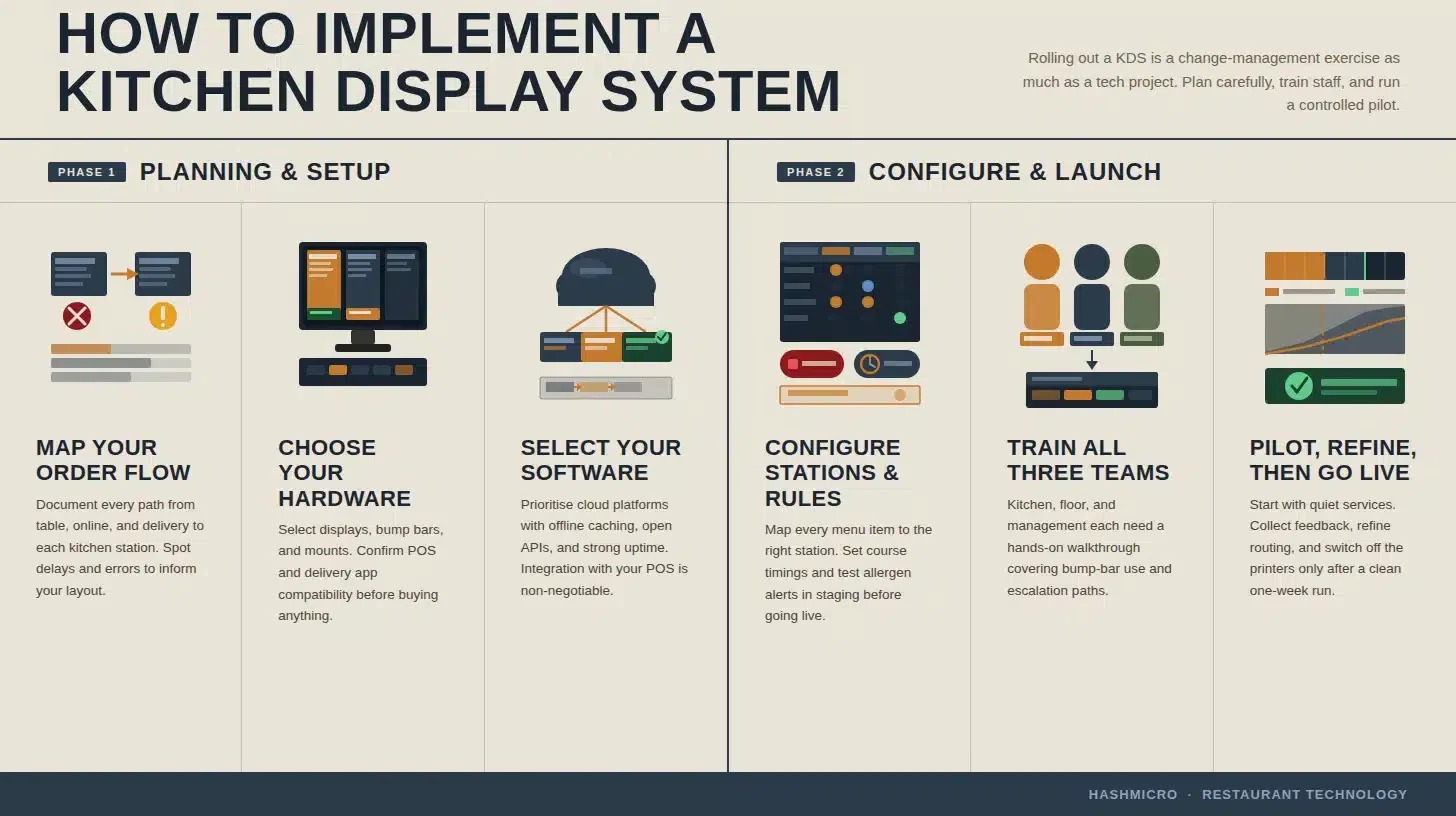
Rolling out a KDS is a change-management exercise as much as a tech project. Venues that plan carefully, train staff, and run a controlled pilot see faster adoption and fewer service disruptions on day one.
1. Map your current order flow
Document how orders move from dine-in tables, online channels, and delivery apps through to each station today. Identify delays and common errors, then use this baseline to shape station layout and routing rules.
2. Choose the right hardware and software stack
Select displays, bump bars, and mounts suited to your kitchen, and shortlist KDS platforms that have POS and kitchen synchronisation. Prioritise cloud platforms with offline caching, open APIs, and solid uptime.
3. Configure stations, courses, and firing rules
Work with the head chef to map every menu item to the correct station, set course timings, and define firing rules for multi-course service. Test modifier logic, allergen alerts, and expeditor views in staging before going live.
4. Train staff and run a controlled pilot
Run hands-on training for kitchen, floor, and management staff, then pilot the KDS during quieter services before peak. Collect feedback, refine routing rules, and switch off the printers only once the pilot runs cleanly for a week.
How a Kitchen Display System Supports Compliance with Australia's Food Safety Standard 3.2.2A
A kitchen display system helps food businesses keep ticket timing, order routing, and handling records in one place. That supports the food safety management tools set out in Standard 3.2.2A, especially when managers need to show how food safety processes were managed. It does not replace training or supervision, but it gives the kitchen a clearer digital record.
What Standard 3.2.2A Requires
Standard 3.2.2A asks food service and retail businesses handling potentially hazardous food to keep the right management tools in place. A kitchen display system helps support that requirement by recording what was ordered, where it was sent, and when it moved through the kitchen.
How Digital Order Timestamps and Prep Tracking Create an Audit Trail
Timestamps show when each order entered the kitchen, when a station accepted it, and when service finished. That record makes it easier to review delays, trace handling, and check how the kitchen performed during busy service.
Reducing Food Safety Incidents Through Consistent Ticket Routing
Consistent ticket routing sends each order to the right station without manual re-entry or paper handling. As a result, the kitchen reduces missed items, duplicate prep, and avoidable confusion during peak periods.
Supporting the "Show Evidence" Obligation Without Manual Paperwork
The evidence tool under Standard 3.2.2A depends on records that show food safety processes are being managed properly. A kitchen display system helps teams capture those records digitally, so managers can demonstrate compliance without relying on scattered paper dockets.
Kitchen Display Systems Across Industries
KDS platforms suit any venue where orders flow through a kitchen, yet each segment has distinct needs. Matching the KDS to the venue type ensures the system supports the actual service style rather than forcing a solution.
1. Cafes and coffee shops
Cafes benefit from compact single-screen setups with one integrated workflow. Cloud kitchen management keep costs low, and timers help baristas and cooks coordinate coffee, cabinet food, and breakfast orders during the morning rush.
2. Full-service restaurants
Full-service venues use multi-station KDS layouts with expediter screens at the pass. Course firing, table-level views, and modifier flags support longer dine-in services and sync prep timing with reservations and pacing.
This is assisted by restaurant order management that streamlines process orders, reducing errors and giving owners the data they need to grow their business.
3. Quick-service and fast-casual restaurants
QSR operators rely on KDS to handle high ticket volumes across counter, drive-through, and delivery. Real-time timers, channel views, and order-ahead routing keep service fast, while analytics track speed-of-service across stores.
4. Ghost kitchens and delivery-only brands
Ghost kitchens run multiple brands from one production space, and KDS platforms keep each brand’s orders visually separated. Delivery APIs pull Uber Eats, Menulog, and DoorDash into one screen, preventing tablet chaos and missed acceptance.
5. Hotels, catering, and large venues
Hotels and catering operators use KDS across room service, banqueting, and multiple outlets. Central dashboards give F&B managers visibility across every kitchen, and function-room firing rules coordinate plated meals to timing cues.
Common Mistakes to Avoid When Using a KDS
Even well-funded KDS rollouts stumble when operators treat the system as plug-and-play. The most common mistakes relate to planning, training, and integration, and each one undermines the speed and accuracy the KDS should deliver.
1. Skipping the workflow redesign
Installing a KDS on top of an unchanged paper-based workflow locks in old inefficiencies. Venues that rebuild their order flow during rollout see much stronger results than those that mirror the old docket layout on screen.
2. Under-training kitchen and front-of-house staff
Chefs who mistrust the KDS default back to printed tickets, and waiters who misuse modifiers create errors downstream. Role-specific training during the pilot is essential, with refreshers whenever menus or routing rules change.
3. Ignoring failover and connectivity planning
Cloud-based KDS platforms depend on a reliable network. Venues that skip UPS units, wired backups, or 4G failover discover the weakness mid-service. Robust infrastructure planning keeps the kitchen running through minor disruptions.
4. Treating KDS data as optional
The real long-term value of a KDS sits in its analytics. Operators who never review prep times, station loads, or late-order trends miss the insights that justify the investment and forfeit gains in rostering and menu engineering.
Best Practices for Implementing a Kitchen Display System
Strong KDS outcomes depend on disciplined planning, consistent training, reliable hardware, and tight integration with the tech stack. These practices help Australian venues capture the full value of their KDS investment from day one.
1. Plan a phased rollout with clear milestones
Break the rollout into discovery, configuration, pilot, and launch phases, each with defined owners. A phased plan surfaces issues early, keeps stakeholders aligned, and avoids the chaos of switching every station in a single shift.
2. Invest in hands-on staff training
Run role-specific training for chefs, expediters, floor staff, and managers, combining classroom sessions with live rehearsals. Post quick-reference guides at each station, and include KDS handling in onboarding so new hires ramp fast.
3. Standardise hardware and network specifications
Specify consistent displays, mounts, bump bars, and network gear across every site. Standardisation simplifies maintenance, speeds replacements, and holds every kitchen to the same baseline, which matters most for multi-site groups.
4. Use a KDS-ERP integrated platform
Connecting the KDS to an ERP platform like HashMicro links kitchen data to inventory, procurement, and finance in real time. Operators track live food cost, automate stock deductions per ticket, and unlock reporting no standalone tool delivers.
How Kitchen Display System Integration Reduces Food Cost Leak
Integrated kitchen display systems help restaurants improve restaurant inventory visibility, kitchen coordination, and operational cost control across daily service activities.
- Automatic recipe-level stock deduction for every completed order ticket.
- Real-time food cost tracking per dish with alerts when profit margins decline.
- Multi-brand routing support for ghost kitchens and virtual restaurant operations.
- BAS-ready sales aggregation across POS and kitchen workflows.
- Cross-site KPI comparison for restaurant groups and multi-location operators.
- Kitchen labour cost tracking by station using Fair Work-compliant time recording.
How AI Is Enhancing Kitchen Display Systems
As kitchens juggle more channels and higher order volumes, AI is moving KDS platforms from simply routing tickets to actively supporting kitchen decisions in real time. The capabilities below show where that shift is already taking hold.
- Predictive prep-time alerts: AI reads historical ticket data and current kitchen load, then flags orders likely to run late so expeditors can adjust before service slows.
- Real-time performance queries: An AI coworker connects live to KDS and sales data, so managers ask about station load, average ticket times, or peak-hour bottlenecks and get instant answers instead of manual reports.
- Automated food-cost tracking: AI monitors recipe-level stock deductions per ticket and flags dishes where food cost is eroding margin, so managers catch issues before they hit profitability.
- Smarter staffing insight: AI analyses order-volume patterns across stations and time periods, helping managers build rosters that match real kitchen demand rather than guesswork.
- Anomaly detection across sites: For multi-location groups, AI compares station performance and prep times across venues, flagging outliers that may point to training gaps or equipment faults.
As AI becomes part of the KDS layer, Australian kitchens gain earlier warning of bottlenecks and clearer, real-time visibility into performance across every station.
Looking to improve your kitchen operations? Contact our team for a free consultation to find the right Kitchen Display System for your business. With AI Hashy, you can streamline order management, reduce manual tasks, and gain real-time insights to improve kitchen efficiency.






Conclusion
A Kitchen Display System turns the kitchen from a paper bottleneck into a measurable, data-rich operation. Venues that deploy a well-configured KDS gain faster service, fewer errors, and sharper visibility across labour and food cost.
The strongest results come when operators treat the KDS as part of a broader digital stack, not a standalone tool. Pairing it with a modern POS, delivery integrations, and an ERP platform gives the business a single source of truth, where the real advantage sits.
If you are interested in implementing your own kitchen display system, you can get a kitchen display consultation with our team today and let us assist you in the process.

Frequently Asked Question
KDS pricing depends on scale. Ruggedized displays that are built to withstand intense kitchen heat, grease, and smoke run $800-$2,500+ per unit, while commercial all-in-one monitors run $900-$2,000+ per unit. Passive displays and external compute boxes run $300-$700 per unit for the display only.
A POS manages customer-facing transactions like ordering, payment, and receipts, while a KDS manages kitchen-side preparation. The POS captures the order and sends it to the KDS, which routes it to the right station and tracks prep time.
Most single-site rollouts take two to six weeks from kick-off to go-live, depending on menu complexity and integrations. Multi-site groups usually plan a six to twelve week programme, piloting at one venue before rolling out in waves.
Yes. A KDS captures a time-stamped record of every order, including modifiers and allergen flags, which supports Food Standards Australia New Zealand record-keeping. Some platforms also integrate with temperature logs and HACCP checklists.
Cloud-based KDS platforms store order history and configurations in the vendor's data centre, so replacing a screen does not erase data. Staff sign in on the new hardware and the previous setup loads automatically.